Showing posts with label vmware. Show all posts

Tuesday, October 4, 2011

Installing VMware tools in Linux

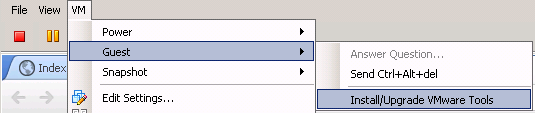
So installing VMWare tools in Windows it's pretty easy with a wizard, but on Linux, if you're a first-timer, you'll have some issues. Here are the steps (they're pretty simple).

Select Install VMware tools in Console.

Friday, September 16, 2011

vSphere Syslog Collector

I was trying to find a way to create a syslog server where I could centralize all my ESX hosts' logs. I was between options (like Kiwi, phpsyslog-ng, etc.) when I decided to do it with Adiscon LogAnalyzer, which is a free and opensource solution. I'll post a guide for its installation in another post (because I actually installed it successfully all the way).

When I was about to add the ESX hosts to my sources list in the syslog server, I found out that vSphere 5 contains a new feature called VMware Syslog Collector, and since we'll be migrating to that version in a few weeks, makes no sense to move on with my LogAnalyzer.

Wednesday, September 14, 2011

vCenter Error registering vmx

I was trying to bring an ESX host to maintenance mode, but it keep failing to migrate a box using vMotion. Being that VM the only one left, I suspended it and migrated it manually. Everything worked ok.

When I came back to that box to power it on again, this error showed up:

This virtual machine cannot be powered on because its working directory is not valid. Use the configuration editor to set a valid working directory, and then try again.


Thursday, September 8, 2011

PowerOff-VM function

Following my previous post, here's the PowerOff-VM function:

Function PowerOff-VM($vm, $id){
$getvm = Get-VM -Id $id
Shutdown-VMGuest -VM $getvm -Confirm:$false | Out-Null
Write-Host "$vm is stopping!" -ForegroundColor Yellow
sleep 10

do {
$vmview = Get-VM -Id $id | Get-View
$getvm = Get-VM -Id $id
$powerstate = $getvm.PowerState
$toolsstatus = $vmview.Guest.ToolsStatus

Write-Host "$vm is stopping with powerstate $powerstate and toolsStatus $toolsstatus!" -ForegroundColor Yellow
sleep 5

}until($powerstate -match "PoweredOff")
Write-Host "$vm is powered-off"
}

This function is a little more straightforward. It basically calls the VMGuest to shutdown and work from there. As the previous function, it imports the same two variables ($vm and $id) for the same purposes.

If you plan on scripting for powering off a VM, don't use Stop-VM! It powers off the VM cold, and it will give an error next time you boot. Only use it if you don't care about the next boot (e.g. VM is in IndependentNonPersistent).

PowerOn-VM function

Messing around with PowerCLI, I always had problems to power on and off cleanly/reliably. However, after a few tries, i've come up with two functions i use a lot now for almost every script that involves those two actions. Today i'm going to post the first one.


Here's the function for PowerOn:

Function PowerOn-VM($vm, $id){
$getvm = Get-VM -Id $id
Start-VM -VM $getvm -Confirm:$false -RunAsync | Out-Null
Write-Host "$vm is starting!" -ForegroundColor Yellow
sleep 10

do {
$vmview = Get-VM -Id $id | Get-View
$getvm = Get-VM -Id $id
$powerstate = $getvm.PowerState
$toolsstatus = $vmview.Guest.ToolsStatus

Write-Host "$vm is starting, powerstate is $powerstate and toolsstatus is $toolsstatus!" -ForegroundColor Yellow
sleep 5
#NOTE that if the tools in the VM get the state toolsNotRunning this loop will never end. There needs to be a timekeeper variable to make sure the loop ends

}until(($powerstate -match "PoweredOn") -and (($toolsstatus -match "toolsOld") -or ($toolsstatus -match "toolsOk") -or ($toolsstatus -match "toolsNotInstalled")))

if (($toolsstatus -match "toolsOk") -or ($toolsstatus -match "toolsOld")){
$Startup = "OK"
Write-Host "$vm is started and has ToolsStatus $toolsstatus"
}
else{
$Startup = "ERROR"
[console]::ForegroundColor = "Red"
Read-Host "The ToolsStatus of $vm is $toolsstatus. This is unusual. Press +C to quit the script or press to continue"
[console]::ResetColor()
}
return $Startup
}

As you can see, the function will return a code (OK or ERROR) and you can use it as you'd like in the main script. ERROR will happen when VMTools are not detected and $toolsstatus is "toolsNotInstalled".

In order to run this function, you would need to call two variables: $vm and $id. Here are the reasons for using this variables:

  • $id: I used this variable importing the id of a VM (e.g. VirtualMachine-vm-1234) because this way i could avoid having problems when i have two VMs with the same name. It's a bit tedious to add it to a script, but it was needed.

  • $vm: This one is pretty simple. Originally i was importing the VM name from a CSV file, and that's why I left it basically for aesthetic purposes (i.e. Write-Host cmdlets).


Here's an example for this function:

$vm = Get-VM -Name VM2134 | Select Name
$id = Get-VM -Name VM2134 | Select Id

PowerOn-VM $vm $id


Let me know if you think I can improve it or if you have any doubts.